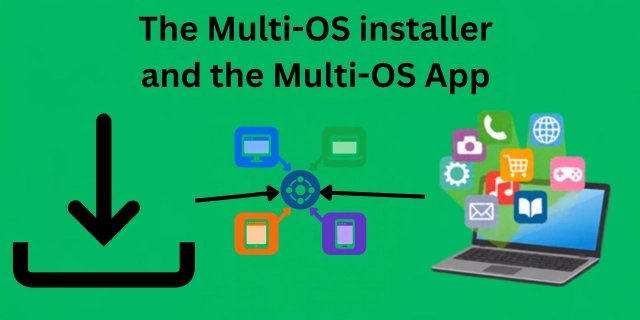
The Multi-OS Installer
In the 1990s and 2000s, buying an app often meant going to a shop and paying for a CD-ROM. Then you had to insert the disc and run its installer. Some of these discs contained both a Windows installer and a Mac installer, but each computer showed the installer meant for its operating system.
The trick was a hybrid disc: the same disc had different filesystem views. There were three useful parts to think about:
- Shared data: the heavy video, audio, and other resources. Both filesystem views could point to the same data on the disc; this did not need to be a separate third partition.
- ISO 9660: a filesystem readable by Windows and many other operating systems. Joliet extends ISO 9660 with Unicode filenames; it is not a later name for ISO 9660.
- HFS or HFS+: the Mac filesystem view. HFS means Hierarchical File System, and HFS+ is its newer format.
A Windows computer could read the Windows installer through the ISO view. A Mac could read the Mac installer through the HFS view. When the disc was built that way, both installers could refer to shared media without storing two copies of it.
Physical CD-ROMs are much less common now, but an .iso file can still carry an optical-disc image. Like .dmg and .img files, it lets you work with a virtual disk. An ISO does not automatically contain a Mac filesystem: the image must be deliberately built as a hybrid.
Package your Windows app as .exe, .msi, .msix or .appx, and your Mac app as .pkg or .dmg. You can put both into one hybrid ISO using the tool below.
Windows view
ISO 9660 + JolietInstaller.exe, Installer.msi, Installer.msix or Installer.appx
Mac view
HFS+Installer.pkg or Installer.dmg
The image combines two existing installers. Each app still needs its own build for the target OS. Linux can read the ISO view, but Windows installers do not become Linux or ChromeOS apps by being placed in an ISO.
Build your Multi-OS Installer
Choose one installer for each platform. The tool creates a downloadable .iso with the Windows file in ISO 9660/Joliet and the Mac file in HFS+. Your installer contents stay unchanged; their filenames inside the image become Installer with the original extension.
Runs entirely on your device
Two installers. One ISO.
Your files stay in this browser. They are never uploaded or run by this tool.
Up to 2 GiB combined. Use a single-file, flat .pkg or a standard UDIF .dmg. Basic file-header checks catch mismatched or empty files; they do not verify that an installer works.
Using your ISO
- Open
Multi-OS-Installer.isoto mount it as a virtual disc. - On Windows, open the
Installer.exe,Installer.msi,Installer.msixorInstaller.appxfile. On a Mac, openInstaller.pkgorInstaller.dmg, then follow that installer’s instructions. - When you finish, eject the mounted virtual disc.
This image is an installer container, not a bootable operating-system disc. It contains the two selected files; it does not add a shared-data folder or change the original installers’ signing requirements.
The Multi-OS App
When you want a Multi-OS app, you need an approach that can work on the systems you want to support. Desktop apps often need separate packaging and testing for each OS. An IDE such as VS Code helps you write code, but it is not something the app’s users must have installed to run a finished app.
So here, we take inspiration from the web. As you may know, websites are structured with HTML, styled with CSS, and programmed using JavaScript. Why not make apps the same way?
You can! Progressive Web Apps (PWAs) use the web browser to run HTML, CSS, and JavaScript. One website can provide an app experience on Windows, macOS, Linux, ChromeOS, and other platforms with a compatible browser. Installation options and available features depend on the browser and OS.
Try it with nithi.land
Install nithi.land using your browser’s address-bar install icon or app menu. The homepage, articles, images, and the ISO builder are saved for offline use after your first connected visit.
Your browser decides when to offer installation. If its icon hasn’t appeared yet, use its app installation menu.
Saving for offline use…
Cloud features, external links, videos, and installer downloads need an internet connection. Files you select in the ISO builder stay on your device. Browser storage can be cleared or evicted; reconnect to save this content again.
Install a website as an app
Google Chrome
- Open the website in Chrome.
- Open the three-dot menu and choose Cast, save and share → Install page as app.
- Follow the installation prompt. Some sites also show an install icon in the address bar.
Safari on Mac
- On macOS Sonoma 14 or later, open the website in Safari.
- Choose File → Add to Dock, or use Share → Add to Dock.
- Choose its name and click Add. You can open it from the Dock or Spotlight.
Microsoft Edge
- Open the website in Edge.
- Open the three-dot menu and look for Apps → Install this site as an app. In some versions, Apps appears under More tools.
- Follow the installation prompt, or use the address-bar install icon when the site offers it.
Does a PWA work offline?
It can—if the developer has built offline support. Installing a website as an app gives it a launcher and its own window. It does not automatically download the whole website or make every feature work without the internet.
An offline-capable PWA commonly uses a service worker to cache selected files and handle requests when the network is unavailable. It can keep:
- Code: the HTML, CSS, and JavaScript needed to open and use the app.
- Visual assets: images, icons, and fonts. A web app manifest can describe the app’s name, icons, and launch settings.
- Local data: content the app has deliberately saved, such as downloaded media, drafts, or recent posts.
That can let you use the last saved version offline. New messages, uncached videos, and other server-dependent features still need a connection. Simply visiting or installing an app does not guarantee that all your recent content has been saved. Microsoft’s PWA guide shows how service workers add offline support.
On a Mac, Safari saves a web-app launcher in your home folder’s Applications folder. The browser manages the app’s website data separately; a launcher is not necessarily a bundle containing the complete website. Other browsers and operating systems use their own shortcuts and storage locations.
Under the hood, the same web code can power these different app windows. That is what makes a PWA a useful Multi-OS app: one website, with its behavior and offline support deliberately designed for the browsers it will run in.